Downsizing an Underutilized EC2 Instance
Overview
This tutorial demonstrates how to reduce costs by downsizing an underutilized EC2 instance. We'll identify an instance with consistently low CPU and network usage, then resize it to a smaller instance type to achieve approximately 50% cost savings.
Target Instance: i-0cd15bcce35c73ac9 Original Type: t3.micro ($0.0104/hour) New Type: t3.nano ($0.0052/hour) Monthly Savings: ~$37
Prerequisites
- AWS Console access with EC2 permissions
- An underutilized EC2 instance to remediate
Steps
1. Navigate to EC2 Instances
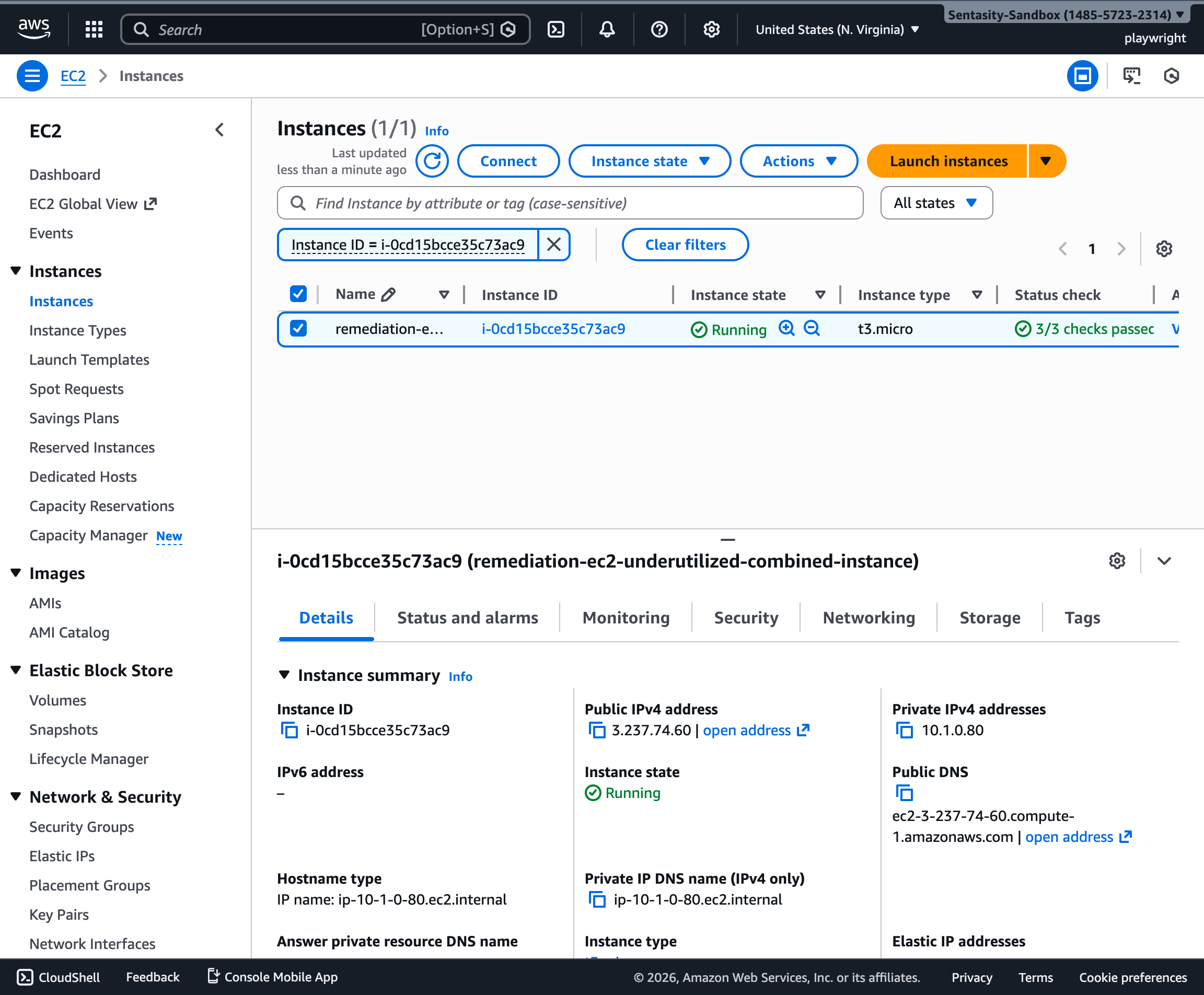
Open the AWS Console and navigate to the EC2 service. Select "Instances" from the left sidebar to view all running instances.
2. Locate the Underutilized Instance
Use the search filter to find your target instance by Instance ID. Select the instance to view its details.
3. Review Monitoring Metrics
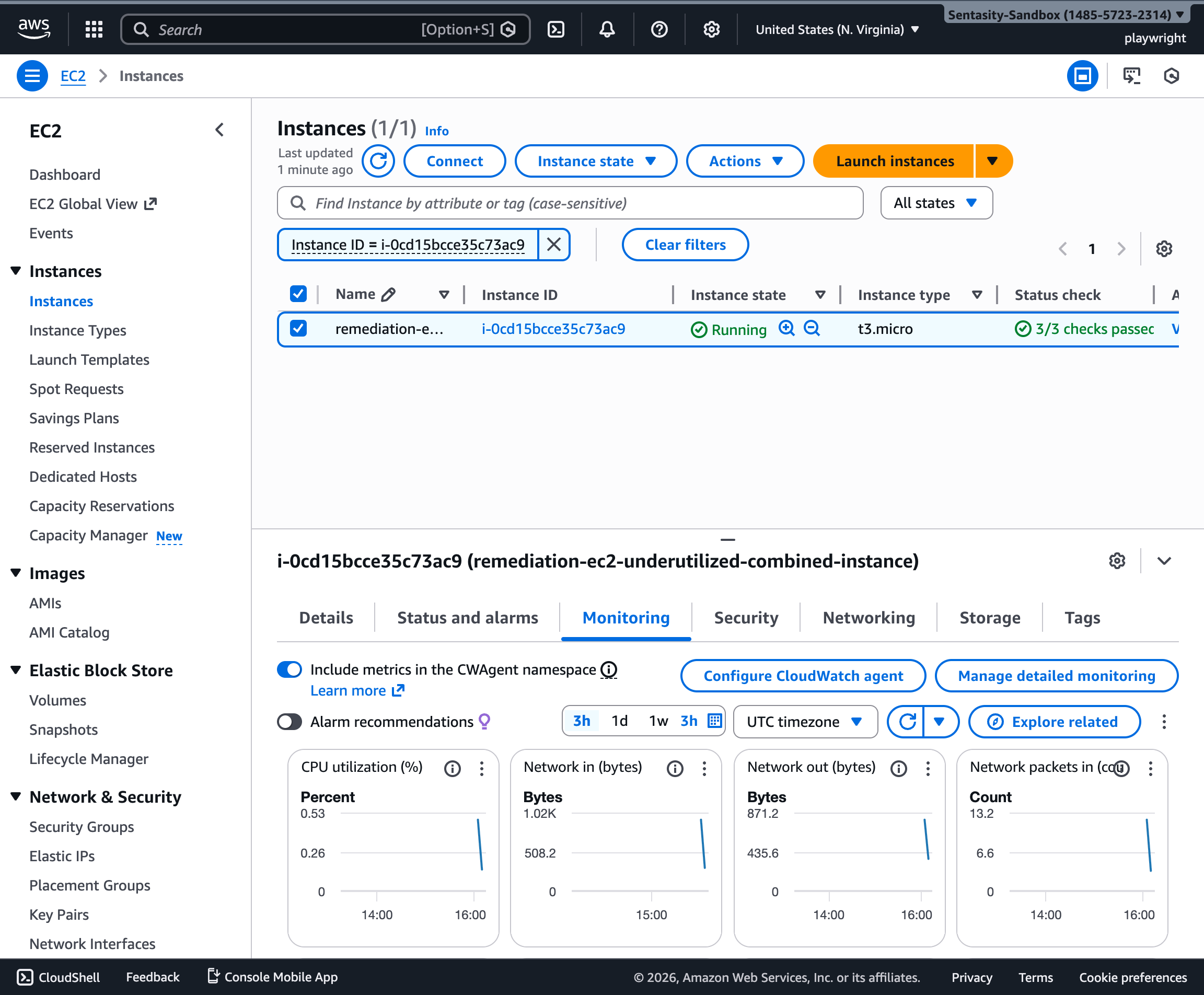
Click on the "Monitoring" tab to view CloudWatch metrics for the instance. Examine CPU utilization and network traffic over the past few hours.
4. Analyze CPU Utilization
Look at the CPU utilization graph. If the instance shows consistently low CPU usage (e.g., below 5%), it's a good candidate for downsizing.
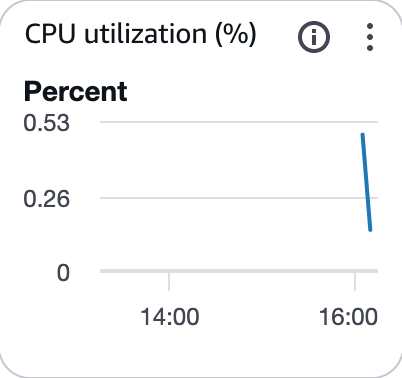
In this example, the maximum CPU utilization is only 0.53%, indicating significant underutilization.
5. Stop the Instance
Before changing the instance type, you must stop the instance. Select the instance, click "Instance state" → "Stop instance".

Click "Stop" to confirm. Wait for the instance state to change to "Stopped".
6. Change Instance Type
Once stopped, select the instance and click "Actions" → "Instance settings" → "Change instance type".
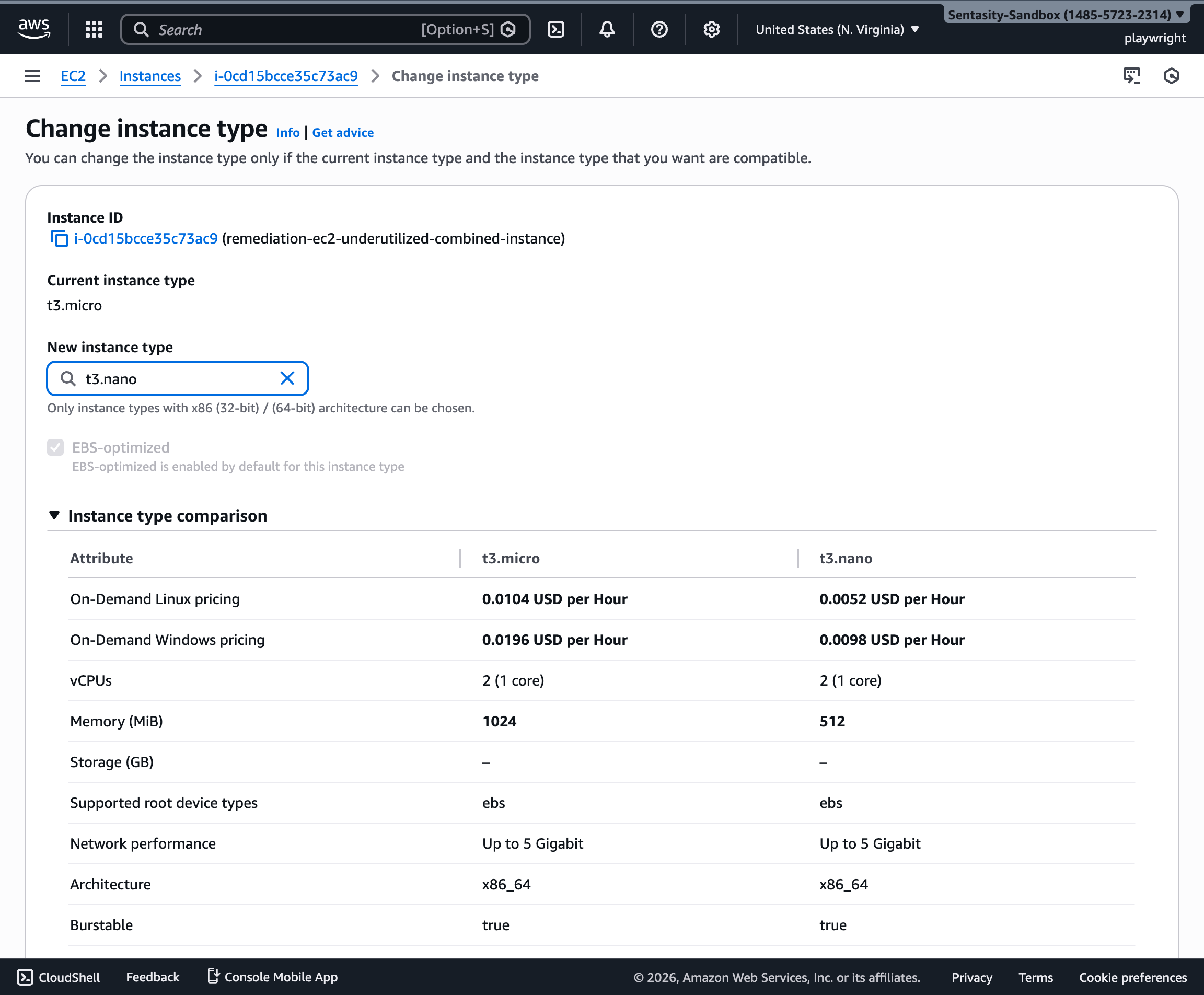
Select a smaller instance type (e.g., t3.nano) from the dropdown. The console will show the cost comparison:
- t3.nano: $0.0052/hour, 512 MiB memory
- t3.micro: $0.0104/hour, 1024 MiB memory
This represents a 50% cost reduction.
7. Apply the Change
Click "Apply" to change the instance type.

You should see a success notification confirming the instance type has been changed.
8. Restart the Instance
Select the instance and click "Instance state" → "Start instance" to restart it with the new instance type.
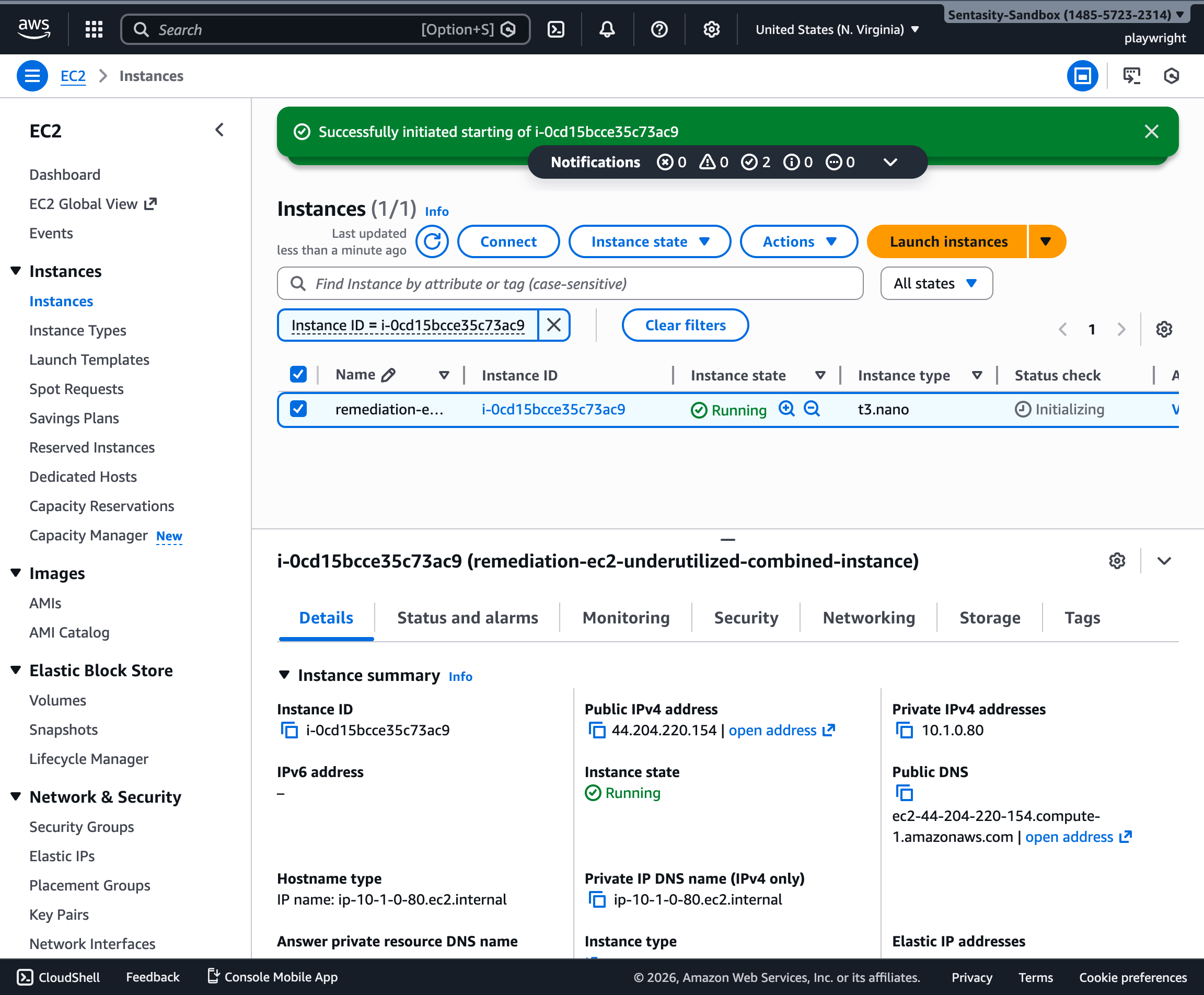
Wait for the instance to reach the "Running" state. Verify that the instance type column shows the new type (t3.nano).
9. Verify the Change
After the instance is running, check:
- Instance type is correctly set to t3.nano
- Instance has a new public IP (if using dynamic IPs)
- Applications running on the instance are functioning normally
Cost Impact
Before: t3.micro at $0.0104/hour = $7.59/month (730 hours) After: t3.nano at $0.0052/hour = $3.80/month (730 hours) Monthly Savings: $3.79 (50% reduction) Annual Savings: $45.48
For multiple underutilized instances, these savings can add up significantly.
Alternative Approaches
Option 1: Schedule Instance Downtime
If the instance is only needed during business hours, consider using AWS Instance Scheduler to automatically stop instances during off-hours. This can save up to 70% on compute costs.
Option 2: Switch to ARM-based Instances
Consider migrating to ARM-based Graviton instances (t4g family) for up to 20% additional cost savings compared to x86 instances. Note: This requires application compatibility with ARM architecture.
Option 3: Use Auto Scaling with Scheduled Scaling
For predictable workload patterns, configure Auto Scaling with scheduled scaling policies to automatically adjust capacity based on time of day or day of week.
Option 4: Move to Serverless
For very low utilization workloads, consider migrating to AWS Lambda or Fargate to pay only for actual compute time used rather than idle instance hours.
Best Practices
- Monitor After Resizing: Watch CloudWatch metrics for 24-48 hours after downsizing to ensure the smaller instance type handles the workload adequately.
- Set CloudWatch Alarms: Create alarms for high CPU utilization (>80%) to be notified if the instance becomes undersized.
- Review Regularly: Perform monthly reviews of instance utilization to identify opportunities for further optimization.
- Test Before Production: Always test instance type changes in non-production environments first to validate performance.
Rollback Procedure
If you need to restore the original instance type:
- Stop the instance
- Change instance type back to t3.micro (or original type)
- Start the instance
- Verify application performance