Upgrading RDS from Old Generation Instance Classes
Note: This tutorial provides a comprehensive guide to upgrading RDS instance classes. The screenshot examples illustrate the AWS RDS console interface. For a complete visual walkthrough, perform these steps with an actual old-generation instance in your AWS account.
Overview
This tutorial demonstrates how to upgrade an Amazon RDS database instance from an old generation instance class to a current generation class. Old generation instance classes (db.t2, db.m3, db.m4, db.r3, db.r4) are being phased out, and upgrading to current generation classes (db.t3, db.m5, db.r5, or Graviton-based db.t4g, db.m6g, db.r6g) can provide:
- Cost savings: 10-20% reduction in compute costs
- Better performance: Nitro-based instances offer improved network and storage performance
- Access to latest features: Current generation instances support newer AWS features
- Future-proofing: Avoid eventual forced migrations when old generations are deprecated
Prerequisites
- An RDS database instance running on an old generation instance class (db.t2, db.m3, db.m4, db.r3, or db.r4)
- Appropriate IAM permissions to modify RDS instances
- Understanding of your application's downtime tolerance (modification requires instance restart)
Common Upgrade Paths
| Old Generation | Current Generation | Graviton Alternative |
|---|---|---|
| db.t2.micro → | db.t3.micro | db.t4g.micro |
| db.t2.small → | db.t3.small | db.t4g.small |
| db.m3.medium → | db.m5.large | db.m6g.large |
| db.m4.large → | db.m5.large | db.m6g.large |
| db.r3.large → | db.r5.large | db.r6g.large |
| db.r4.xlarge → | db.r5.xlarge | db.r6g.xlarge |
Note: Graviton-based instances (db.t4g, db.m6g, db.r6g) offer an additional 10-15% cost savings beyond standard current generation instances but require ARM-compatible database engines.
Step-by-Step Guide
Step 1: Navigate to RDS Console
Sign in to the AWS Console and navigate to the RDS service in the us-east-1 region (or your preferred region):
Console URL: https://us-east-1.console.aws.amazon.com/rds/home?region=us-east-1#databases:
Step 2: Identify Old Generation Instance
In the RDS Databases list, locate instances using old generation instance classes. Look in the Size column for instance classes starting with:
- db.t2.*
- db.m3.* or db.m4.*
- db.r3.* or db.r4.*
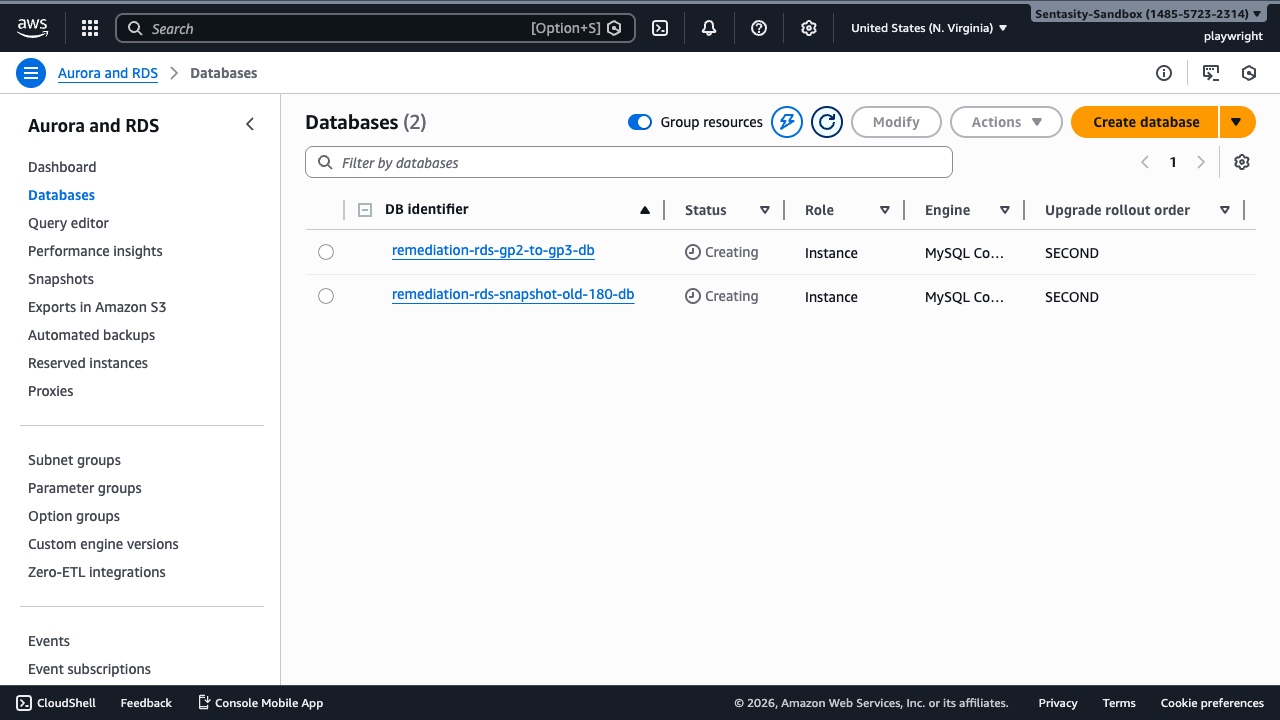
In this example, we'll upgrade a db.m4.large instance to db.m5.large.
Step 3: Select Database Instance
Click on the database identifier link to view the instance details page.
Step 4: Initiate Modification
On the database details page, click the Modify button in the top-right corner to begin the instance class upgrade process.
Step 5: Select New Instance Class
In the DB instance class section:
- Click the dropdown to view available instance classes
- Select the equivalent current generation class
Common upgrade selections:
- db.m4.large → db.m5.large (same memory and vCPUs, lower cost)
- db.t2.micro → db.t3.micro (burstable performance, lower cost)
- db.r3.xlarge → db.r5.xlarge (memory-optimized, better performance)
Important: Ensure the new instance class has sufficient memory and compute capacity for your workload. Review the AWS RDS instance class documentation for detailed specifications.
Step 6: Review Other Settings
Scroll through the modification page to ensure no other settings were inadvertently changed. Only the instance class should be modified unless you have specific reasons to change other parameters.
Step 7: Schedule Modification
At the bottom of the modification page, choose when to apply the change:
Options:
- Apply during the next maintenance window: Minimizes disruption by applying the change during your scheduled maintenance window
- Apply immediately: Applies the modification right away
Important: The instance will restart during the modification, causing brief downtime (typically 1-3 minutes for Single-AZ, potentially longer for Multi-AZ with failover).
Step 8: Confirm Modification
Review the modification summary and click Modify DB Instance to confirm.
The modification request will be submitted and the instance status will change to "Modifying" or show "pending" modifications.
Step 9: Monitor Modification Status
Return to the Databases list to monitor the modification progress.
Status progression:
- Modifying or Pending: Modification is in queue or in progress
- Available: Modification complete, instance is running
Once the status shows Available:
- Verify the Size column shows the new instance class (e.g., db.m5.large)
- Test application connectivity to ensure everything works correctly
- Monitor application performance metrics in CloudWatch
Post-Modification Validation
After the modification completes, validate the upgrade:
- Check instance class: Confirm the Size column displays the new instance class
- Test connectivity: Verify your application can connect to the database
- Review metrics: Check CloudWatch metrics for CPU, memory, and connection stats
- Monitor costs: Verify cost reduction in AWS Cost Explorer after a few days
Alternative Approaches
Using AWS CLI
# Upgrade instance class via CLI
aws rds modify-db-instance \
    --db-instance-identifier your-database-name \
    --db-instance-class db.m5.large \
    --apply-immediately

# Or schedule for maintenance window
aws rds modify-db-instance \
    --db-instance-identifier your-database-name \
    --db-instance-class db.m5.large \
    --no-apply-immediately
Using Infrastructure as Code
CloudFormation:
Resources:
  MyDB:
    Type: AWS::RDS::DBInstance
    Properties:
      DBInstanceClass: db.m5.large  # Updated from db.m4.large
      # ... other properties
Terraform:
resource "aws_db_instance" "main" {
  instance_class = "db.m5.large"  # Updated from db.m4.large
  # ... other properties
}
Cost Impact
Upgrading from old to current generation instance classes typically provides:
- db.m4.large → db.m5.large: ~$36/month savings (20% reduction) for MySQL/PostgreSQL
- db.t2.micro → db.t3.micro: ~$3/month savings (20% reduction)
- db.r4.xlarge → db.r5.xlarge: ~$72/month savings (20% reduction)
Additional savings with Graviton:
- db.m5.large → db.m6g.large: Additional 10-15% savings
- db.r5.xlarge → db.r6g.xlarge: Additional 10-15% savings
Actual savings vary by region, database engine, and pricing model (On-Demand vs Reserved Instances).
Important Considerations
Downtime
- Single-AZ deployments: Expect 1-3 minutes of downtime during instance restart
- Multi-AZ deployments: Failover occurs automatically, minimizing downtime to seconds (typically < 60 seconds)
Testing
- Test in non-production first: Always validate the upgrade in development/staging environments
- Performance testing: Verify application performance meets requirements with the new instance class
- Load testing: Ensure the new instance class handles peak load
Rollback
If issues occur after modification:
- Modify the instance back to the old generation class
- Or restore from a snapshot taken before the modification
Multi-AZ Deployments
For Multi-AZ deployments:
- The modification includes automatic failover to the standby
- Primary is modified first, then becomes the new standby
- Minimal downtime due to automatic failover
Read Replicas
If your instance has read replicas:
- Modify the primary instance first
- Separately modify each read replica
- Consider staggering replica modifications to maintain read capacity
Troubleshooting
Modification fails with "Incompatible parameters":
- Some old instance classes may have storage or parameter configurations incompatible with new classes
- Review error message and adjust storage type or parameter group as needed
Application connection errors after modification:
- Endpoint doesn't change, verify connection string
- Check security groups allow traffic
- Verify database is in "Available" status
Performance degradation after upgrade:
- Current generation instances have different performance characteristics
- Review CloudWatch metrics and adjust instance class if needed
- Consider enabling Performance Insights for detailed analysis
Summary
Upgrading from old generation RDS instance classes to current generation classes is a straightforward process that provides cost savings and improved performance. The modification requires a brief restart, so schedule it during a maintenance window or low-traffic period. Always test in non-production environments first and monitor the database after the modification completes.
For production databases, consider using Multi-AZ deployments to minimize downtime during the modification process.