Configure Retention for CloudWatch Log Groups
Overview
CloudWatch log groups without a retention policy will accumulate logs indefinitely, leading to unnecessary storage costs. This tutorial demonstrates how to configure a retention policy to automatically delete logs after a specified period.
Impact: Setting a 30-day retention policy typically reduces log storage costs by 80-95%. For a log group that has accumulated 500GB over years, monthly cost drops from ~$15/month (500GB × $0.03) to ~$1.50/month (50GB × $0.03) once old logs expire.
Prerequisites
- AWS Console access with CloudWatch Logs permissions
- A log group without retention configured (shows "Never expire")
Steps
1. Navigate to CloudWatch Logs
Navigate to the CloudWatch Logs console. You'll see a list of all log groups in the region.
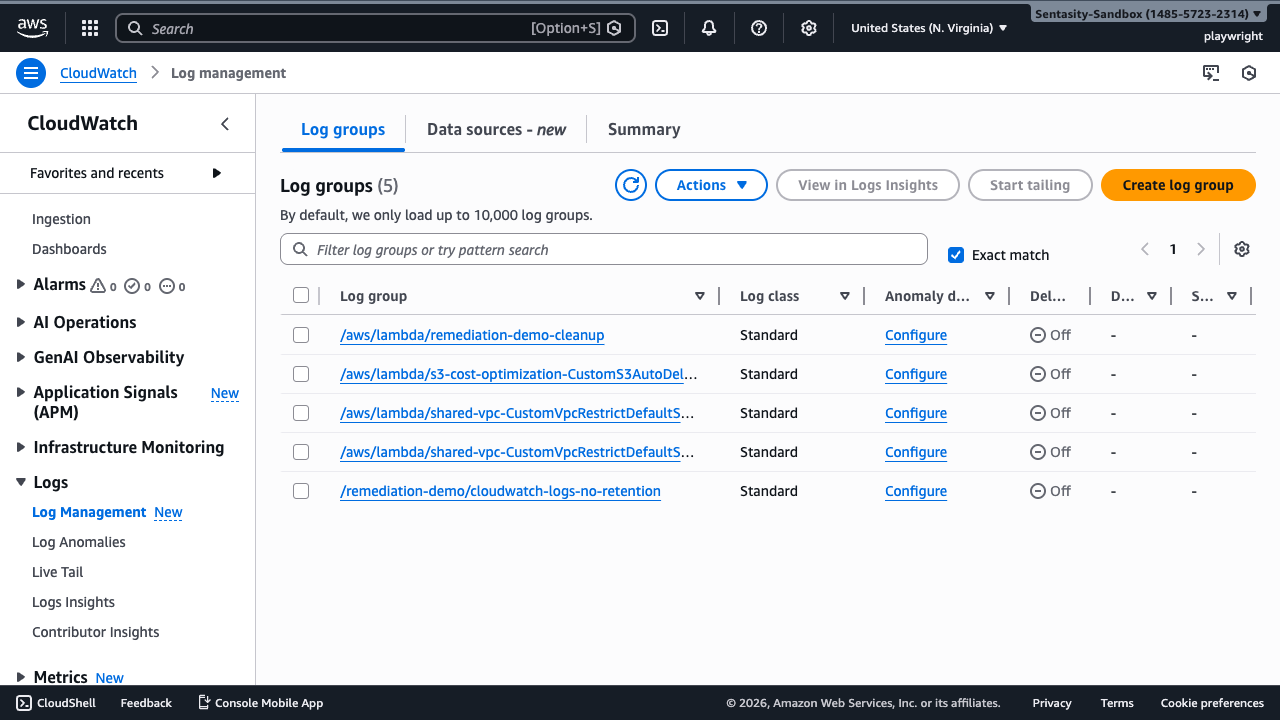
What to look for: Log groups with "Never expire" in the Retention column have no retention policy and will accumulate costs indefinitely.
2. Select the Log Group
Click on the log group name (e.g., /remediation-demo/cloudwatch-logs-no-retention) to open its details page.
3. Open the Actions Menu
On the log group details page, click the Actions dropdown button in the upper right corner. This menu contains management operations for the log group.
4. Edit Retention Setting
From the Actions dropdown, select Edit retention setting(s).
5. Choose Retention Period
A dialog appears with retention options. Select the appropriate retention period for your use case:
- 7 days: Debug logs, temporary troubleshooting data
- 30 days: Standard application logs (recommended for most use cases)
- 90 days: Important operational logs
- 365+ days: Compliance logs, audit trails
Tip: Shorter retention periods = lower costs. Choose the minimum period that meets your operational and compliance requirements.
For this tutorial, select 30 days.
6. Save the Changes
Click Save to apply the retention policy. The change takes effect immediately.
7. Verify Retention Applied
Return to the log group details page. Confirm that the Retention field now shows "30 days" instead of "Never expire".
What happens next: CloudWatch will automatically delete logs older than 30 days. Existing logs older than the retention period will be deleted within 72 hours.
Cost Impact
Setting a 30-day retention policy typically reduces log storage costs by 80-95%:
- Before: A log group with 500GB accumulated over years costs ~$15/month (500GB × $0.03/GB-month)
- After: Once old logs expire, storage drops to ~50GB, costing ~$1.50/month (50GB × $0.03/GB-month)
Actual savings depend on your log volume and ingestion rate.
Alternative Approaches
AWS CLI
Use the AWS CLI for automated or bulk retention updates:
aws logs put-retention-policy \
  --log-group-name /remediation-demo/cloudwatch-logs-no-retention \
  --retention-in-days 30 \
  --region us-east-1
To verify the retention was set:
aws logs describe-log-groups \
  --log-group-name-prefix /remediation-demo/cloudwatch-logs-no-retention \
  --region us-east-1 \
  --query 'logGroups[0].retentionInDays'
Infrastructure as Code
CloudFormation:
Resources:
  MyLogGroup:
    Type: AWS::Logs::LogGroup
    Properties:
      LogGroupName: /my-application/logs
      RetentionInDays: 30
Terraform:
resource "aws_cloudwatch_log_group" "example" {
  name              = "/my-application/logs"
  retention_in_days = 30
}
Bulk Update Script
Update multiple log groups at once:
# List all log groups without retention
aws logs describe-log-groups \
  --region us-east-1 \
  --query 'logGroups[?!retentionInDays].logGroupName' \
  --output text | while read -r log_group; do
    echo "Setting retention for $log_group"
    aws logs put-retention-policy \
      --log-group-name "$log_group" \
      --retention-in-days 30 \
      --region us-east-1
done
Long-Term Archive to S3
For compliance logs needing long-term retention at lower cost:
- Export to S3: Use CloudWatch Logs subscription filters to export logs to S3 (~$0.023/GB-month, cheaper than CloudWatch)
- Set CloudWatch retention to 30 days: Keep recent logs in CloudWatch for easy querying
- Configure S3 lifecycle: Use S3 Glacier for even cheaper long-term storage (~$0.004/GB-month)
This approach provides:
- Fast access to recent logs (30 days in CloudWatch)
- Cost-effective long-term storage (S3/Glacier)
- Compliance with retention requirements
Best Practices
- Set retention on all new log groups: Use Infrastructure as Code to ensure all log groups are created with retention policies
- Regular audits: Periodically check for log groups with "Never expire" status
- Match retention to use case: Don't use one-size-fits-all; different log types need different retention periods
- Consider compliance requirements: Ensure retention periods meet regulatory obligations before reducing
- Test before bulk changes: Start with non-critical log groups to verify the process works as expected
Troubleshooting
Issue: "Access Denied" error when setting retention
- Solution: Ensure your IAM user/role has
logs:PutRetentionPolicypermission
Issue: Logs aren't being deleted after setting retention
- Solution: Deletion can take up to 72 hours. Check again after the grace period.
Issue: Need to keep some logs longer than the retention period
- Solution: Export those specific logs to S3 before they're deleted, or use subscription filters for automatic export
Summary
You've successfully configured a retention policy for a CloudWatch log group. This simple change prevents indefinite log accumulation and can reduce storage costs by 80-95%. Remember to:
- Apply retention policies to all log groups
- Choose retention periods based on your operational needs
- Use Infrastructure as Code to prevent future log groups from being created without retention
- Consider S3 export for long-term compliance storage at lower cost