How to Delete an Underutilized EFS File System
Overview
This tutorial walks through identifying and deleting an Amazon EFS file system that has minimal I/O activity. File systems with very low or no usage still incur storage charges, making them good candidates for cleanup.
What you'll do:
- Review the file system's configuration and state
- Verify low I/O activity via CloudWatch metrics
- Check for and remove mount targets
- Delete the file system
Step 1: Review the EFS File System
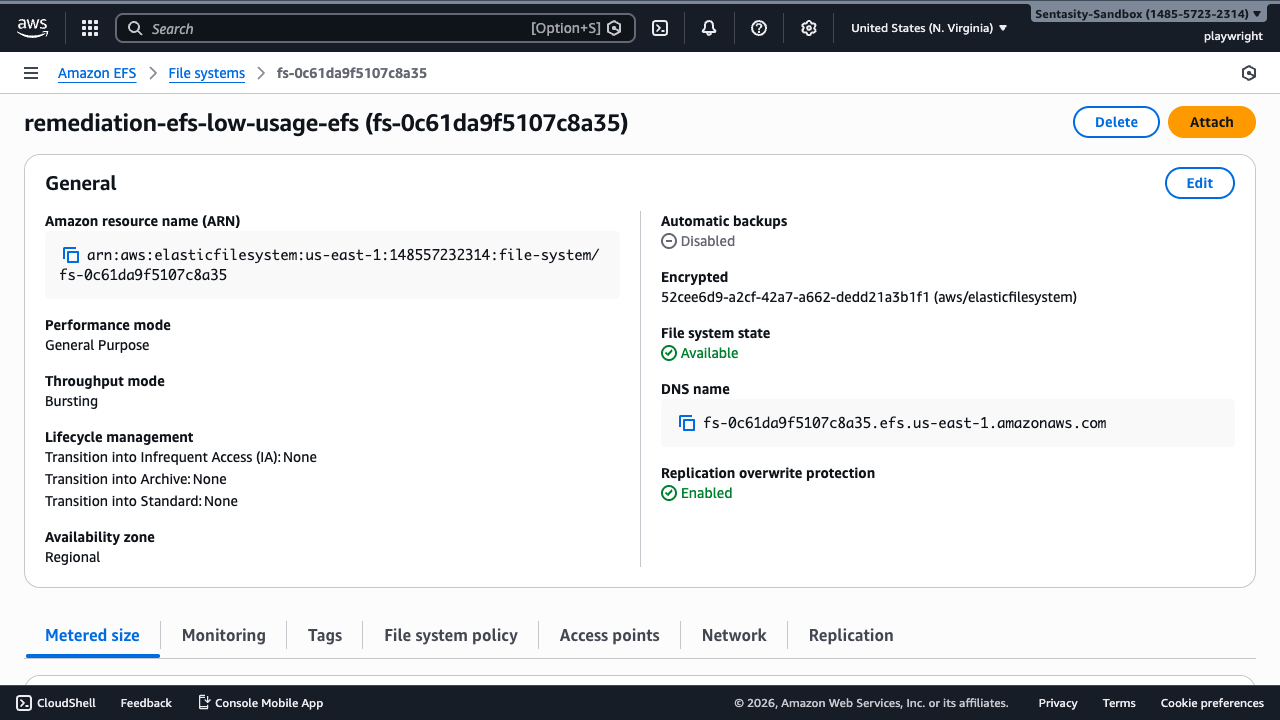
Navigate to the EFS console and open the file system flagged for low usage.
On the detail page, note:
- File system state: Available
- Throughput mode: Bursting
- Lifecycle management: None configured (no automatic tiering to lower-cost storage classes)
This file system is consuming storage costs despite having virtually no I/O activity.
Step 2: Verify Low I/O Activity
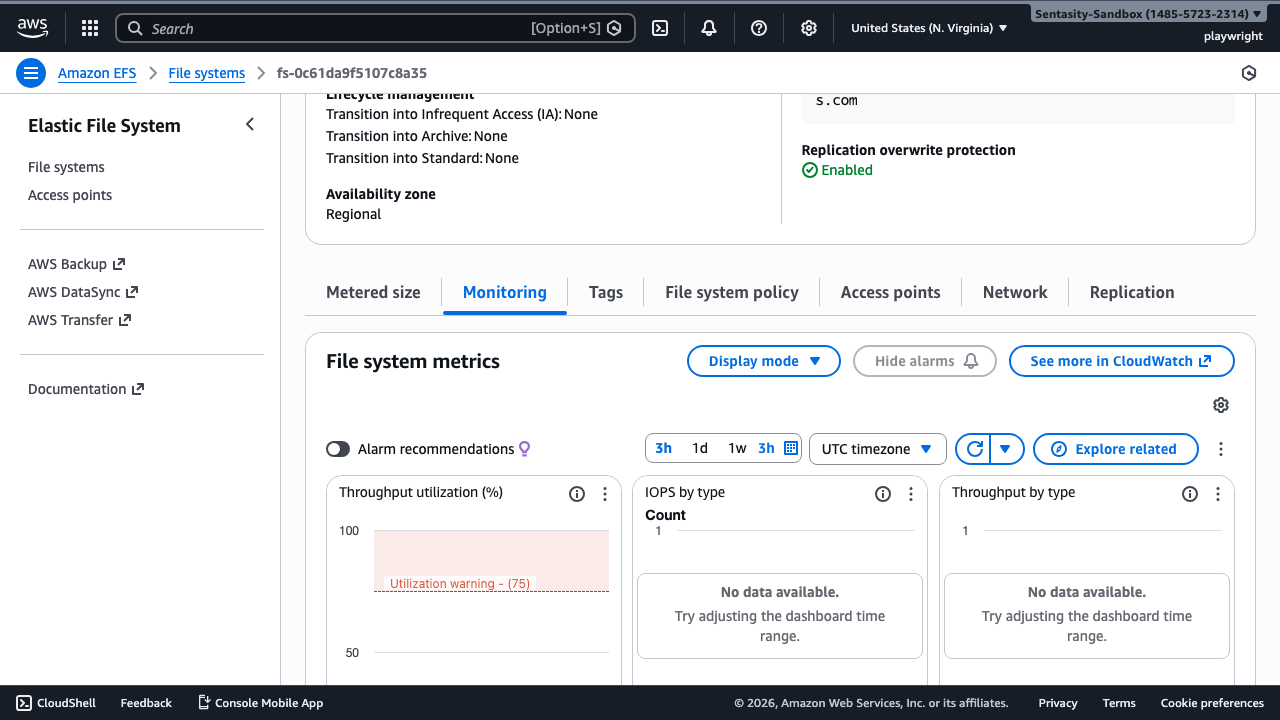
Click the Monitoring tab to view CloudWatch metrics for this file system.
Review the Throughput utilization, IOPS by type, and Throughput by type metrics. If you see "No data available" or very low values across all metrics, this confirms the file system is essentially unused.
If you see significant recent I/O activity, investigate before proceeding — the file system may still be in use.
Step 3: Check for Mount Targets
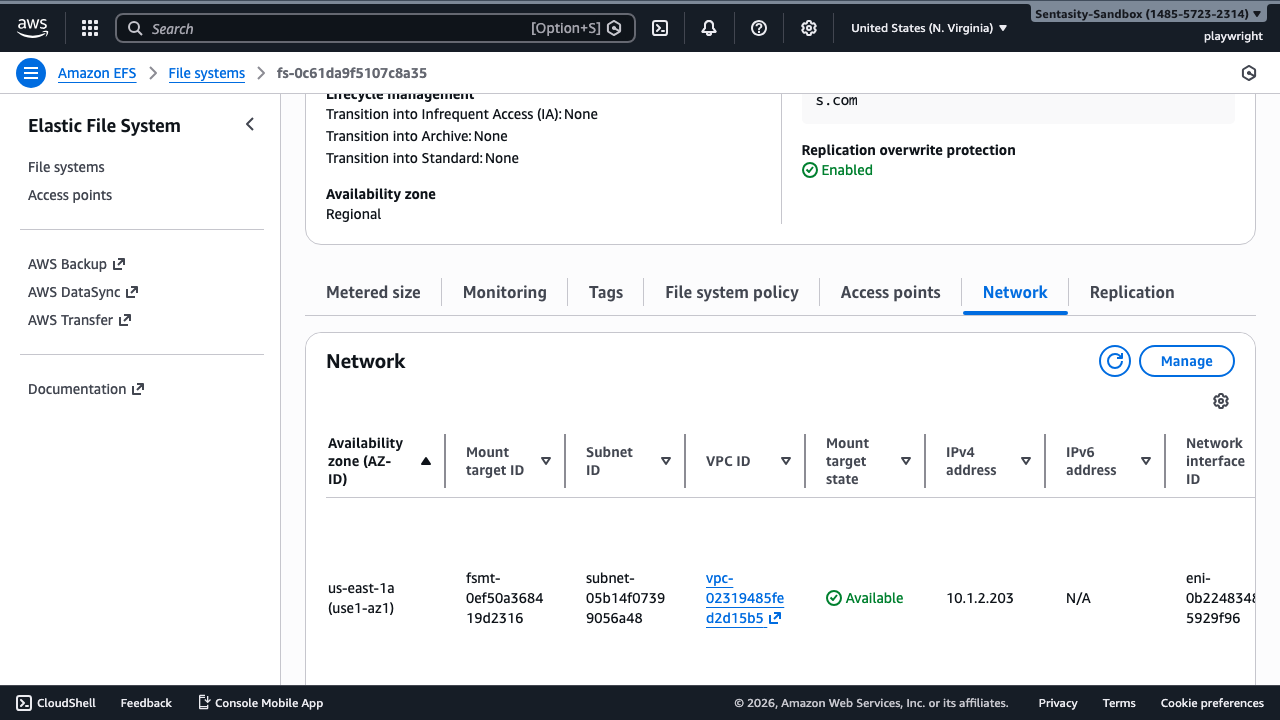
Click the Network tab to see any mount targets associated with this file system.
Mount targets must be deleted before the file system itself can be deleted. Note the mount target IDs and their associated subnets/availability zones.
Important: If any EC2 instances or ECS tasks are actively mounting this file system, unmount them first to avoid application errors.
Step 4: Delete Mount Targets
If mount targets exist, remove them:
- On the Network tab, click Manage
- Remove all mount targets by clicking the X next to each one
- Click Save
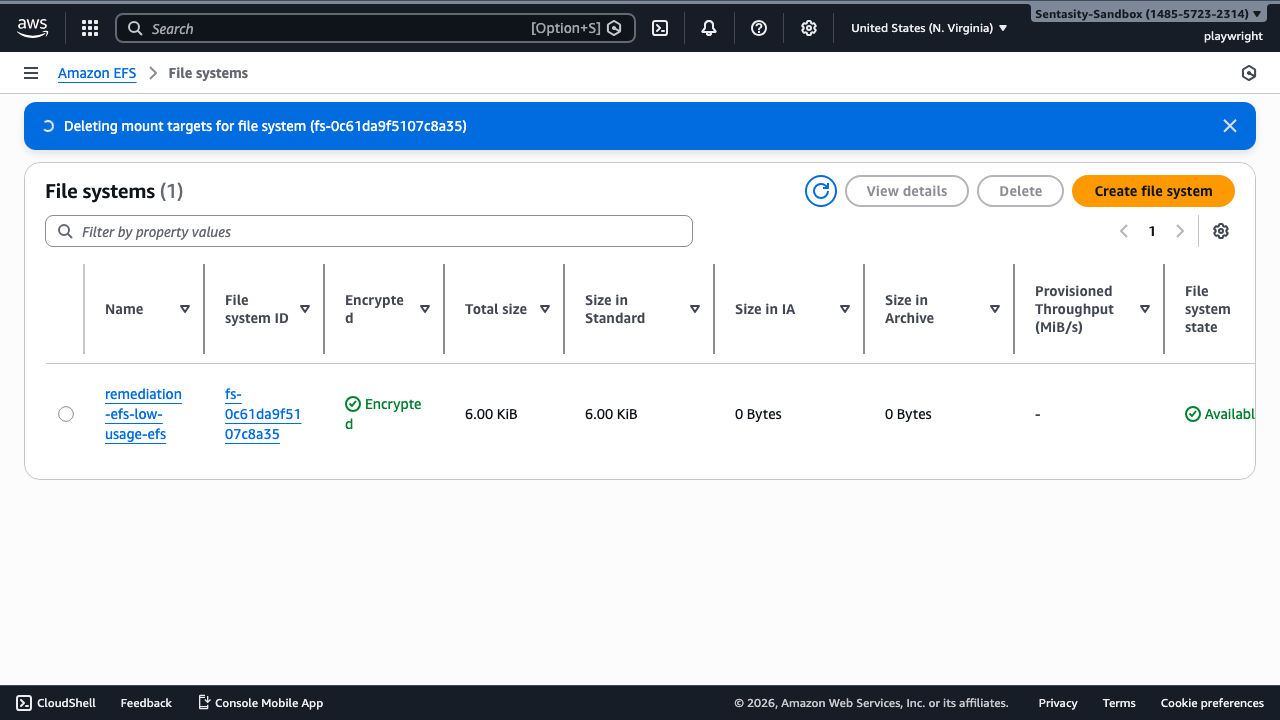
Wait for all mount targets to finish deleting (status changes from "deleting" to removed). This typically takes 1-2 minutes.
Note: You must wait for all mount targets to be fully deleted before proceeding. The file system cannot be deleted while mount targets still exist.
Step 5: Delete the File System
Once all mount targets are removed, click Delete in the upper right of the file system detail page.
A confirmation dialog will appear asking you to type the file system ID to confirm deletion.
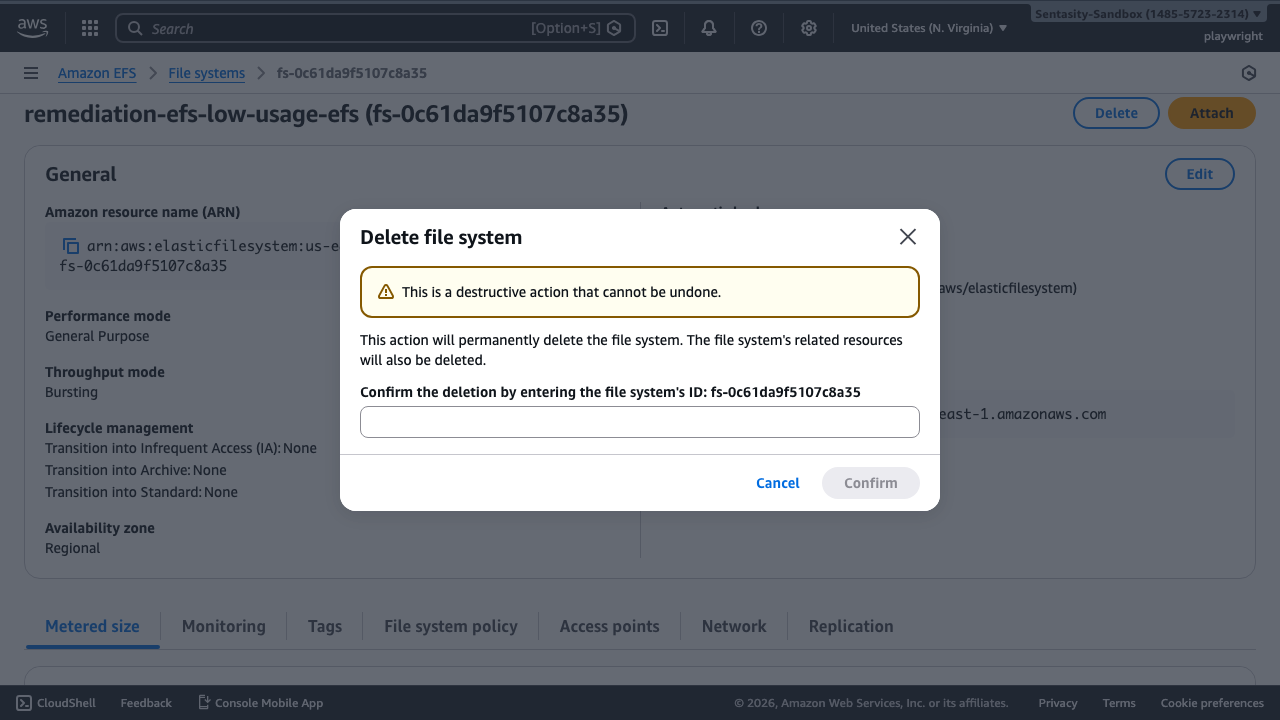
Type the file system ID in the confirmation field and click Confirm to delete the file system.
Warning: This action is irreversible. All data stored in this file system will be permanently deleted.
Step 6: Verify Deletion
Return to the EFS file systems list. The file system should either show a Deleting status or no longer appear in the list.
Deletion is typically complete within a few minutes.
Cost Impact
EFS charges $0.30/GB-month for Standard storage. Even a small unused file system incurs ongoing charges. Larger file systems (common in practice) can cost significantly more. Deleting eliminates ongoing storage charges entirely.
Alternative Approaches
Before deleting, consider these options:
- Enable lifecycle management: Configure EFS Lifecycle Management to move infrequently accessed files to the Infrequent Access (IA) storage class at $0.016/GB-month — a 94% cost reduction. This is a good option if you're unsure whether the data may be needed later.
- Create a backup first: If the data might be needed in the future, create an AWS Backup before deletion. This preserves the data at lower cost than keeping the EFS file system active.
- Reduce throughput mode: If the file system is still needed but rarely accessed, switch from Provisioned to Bursting throughput mode to eliminate throughput charges.