Enable IAM Billing Access
Overview
By default, only the AWS root user can access the Billing and Cost Management console. Before Sentasity can provide guidance on your AWS billing and cost optimization, IAM users and roles in your account need billing access enabled.
This is a one-time, account-level setting that must be configured by the root user. Once activated, IAM users with appropriate permissions can view billing data, verify Sentasity's cost optimization findings, and act on recommendations directly in the AWS console.
Time to complete: ~2 minutes Who needs to do this: AWS account root user (the email address used to create the account)
Why This Is Required
Without this setting enabled, IAM users who navigate to the Billing Dashboard will see a "You Need Permissions" error — even if they have AdministratorAccess:
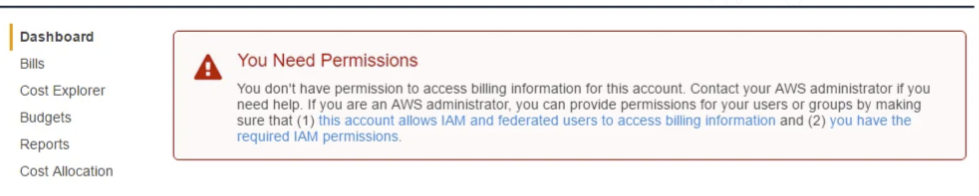
This happens because AWS gates billing console access behind a separate account-level toggle that only the root user can change.
Part 1: Activate IAM Access to Billing (Required)
Step 1: Sign in as the root user
Sign in to the AWS Management Console using your root user credentials — this is the email address and password used to create the AWS account. This step cannot be performed by an IAM user.
Step 2: Navigate to Account settings
Click on your account name in the top-right corner of the console to open the dropdown menu, then select Account.
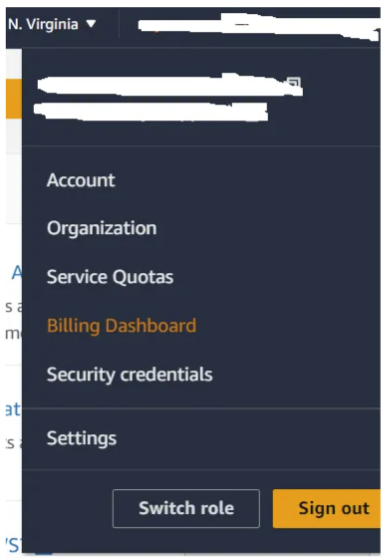
Step 3: Find the IAM access setting
On the Account page, scroll down to the IAM user and role access to Billing information section. By default, this will show as Deactivated. Click the Edit button.

Step 4: Activate IAM Access
Check the Activate IAM Access checkbox, then click Update.

That's it for Part 1. IAM users with sufficient permissions can now access the Billing Console.
This only needs to be done once per AWS account. Member accounts created through AWS Organizations after March 2023 have this enabled by default.
Part 2: Attach Billing Permissions (Optional)
If you're using Sentasity's scanning tools, Part 1 is all that's needed. Sentasity's cross-account roles handle the necessary API access for cost analysis automatically. Part 2 is only relevant if your own team members need to view the Billing Console directly.
After activating IAM access, your IAM users still need the appropriate IAM permissions to view billing data. If your users already have AdministratorAccess or ReadOnlyAccess policies attached, they can view billing data — no further action is needed.
If your IAM users have more restrictive permissions, attach one of these AWS managed policies:
| Policy | Access Level | Use Case |
|---|---|---|
Billing | Full access | Users who need to view and modify billing settings |
AWSBillingReadOnlyAccess | Read-only | Users who only need to view billing data |
To attach a managed policy:
- Navigate to IAM → Users → select the user
- On the Permissions tab, click Add permissions → Attach policies directly
- Search for
BillingorAWSBillingReadOnlyAccess - Select the policy and click Add permissions
Verification
To confirm everything is working:
- Sign in as an IAM user (not root)
- Click your account name in the top-right corner
- Select Billing Dashboard
- You should see the billing overview page without any permission errors